How to Organize Saved Reels from Instagram, TikTok & Facebook
Most of us save reels with good intentions: a 5-minute dinner, a new leg-day routine, a gift idea. A month later there are 400 saves across four apps and no way to find the one you need.
This guide covers how to organize saves inside each app, where each app falls short, and how to keep everything in one searchable library.
Why saved reels get lost
- Every app has its own “saved” folder. Instagram calls it Saved, TikTok calls it Favorites, Facebook calls it Saved, and YouTube uses playlists.
- No search. Instagram and TikTok don’t let you search your own saves.
- Folders are optional. Most people tap save and never sort, so everything ends up in one long list.
How to organize saved posts in each app
| App | Where saves live | How to organize | Search your saves? |
|---|---|---|---|
| Profile > ☰ > Saved | Collections (hold the bookmark icon when saving) | No | |
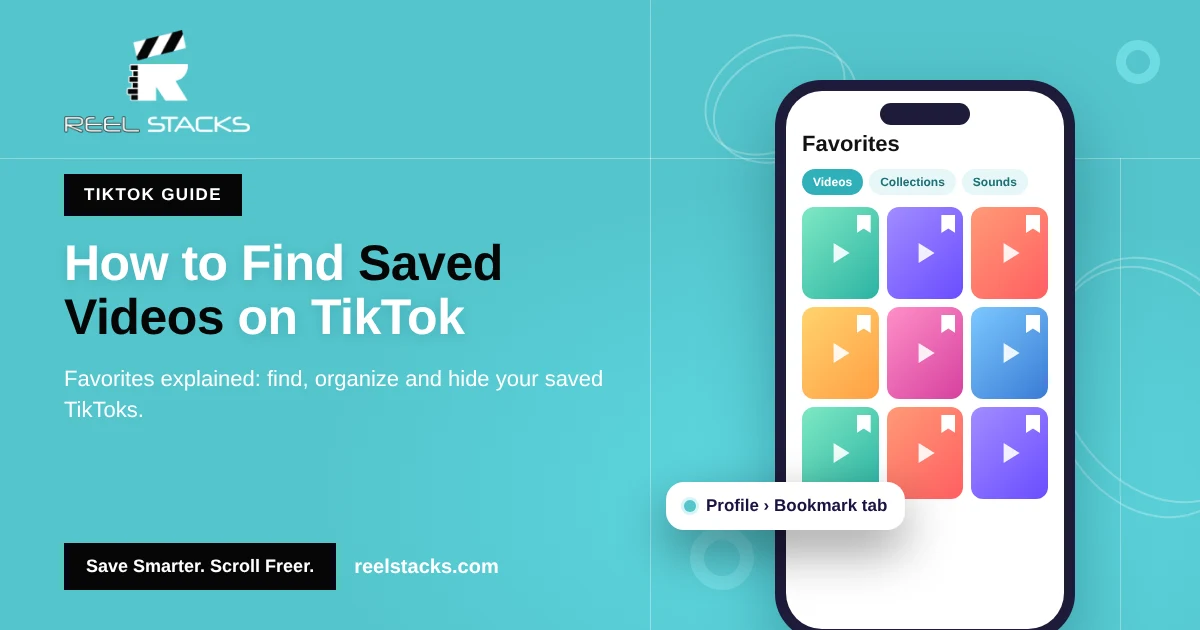
| TikTok | Profile > bookmark tab | Collections inside Favorites | No |
| Menu > Saved | Collections (pick one when you tap Save) | Filter by type only | |
| YouTube Shorts | Library > Playlists | Save to a playlist from the ••• menu | Playlist titles only |
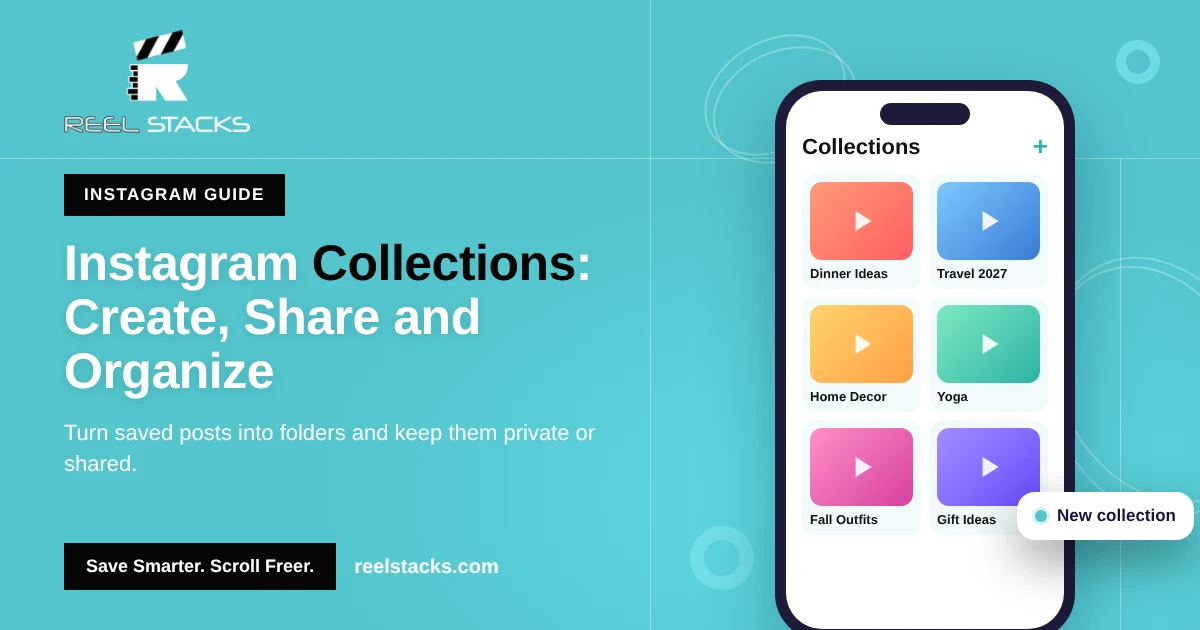
Instagram: tap and hold the bookmark icon on a reel and choose a collection. Full steps in How to Find Saved Reels on Instagram.
TikTok: after tapping the bookmark, tap Manage to drop the video into a collection. Full steps in How to Find Saved Videos on TikTok.
Facebook: when you tap Save on a reel, choose or create a collection. Full steps in How to Find Saved Reels on Facebook.
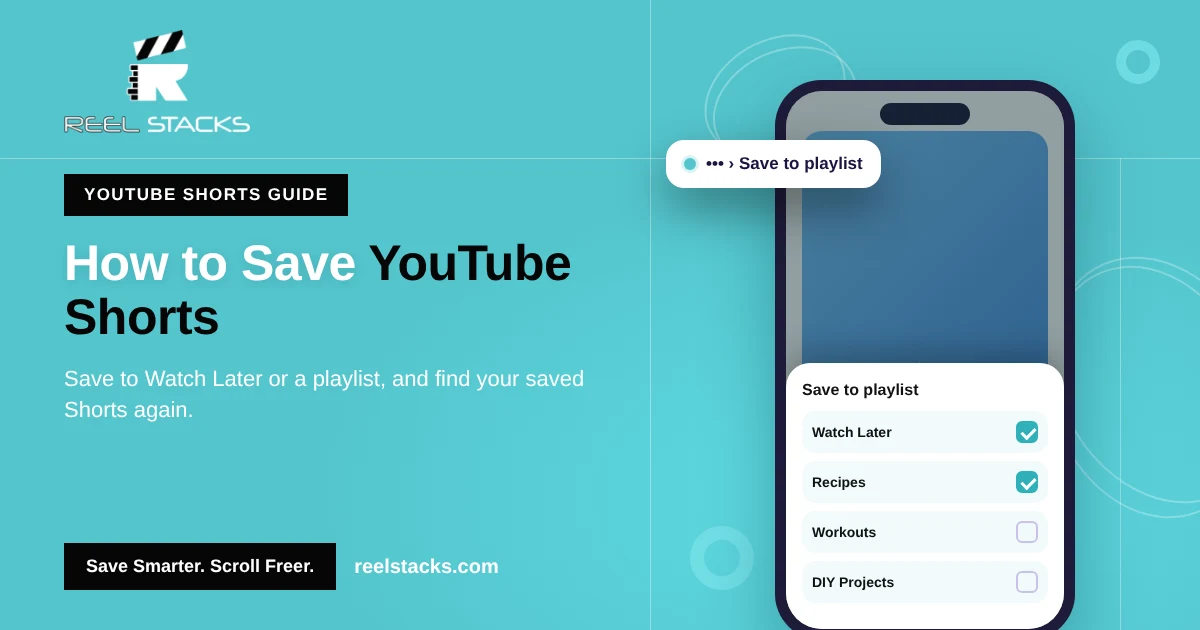
YouTube Shorts: tap the three dots on a Short, tap Save to playlist, and pick or create a playlist.
The problem with organizing app by app
Even if you use collections everywhere, you still have four libraries. When you want “that chicken recipe,” you have to remember whether you saw it on TikTok or Instagram first. That’s the gap Reel Stacks was built to close.
How to organize every saved reel in one place with Reel Stacks
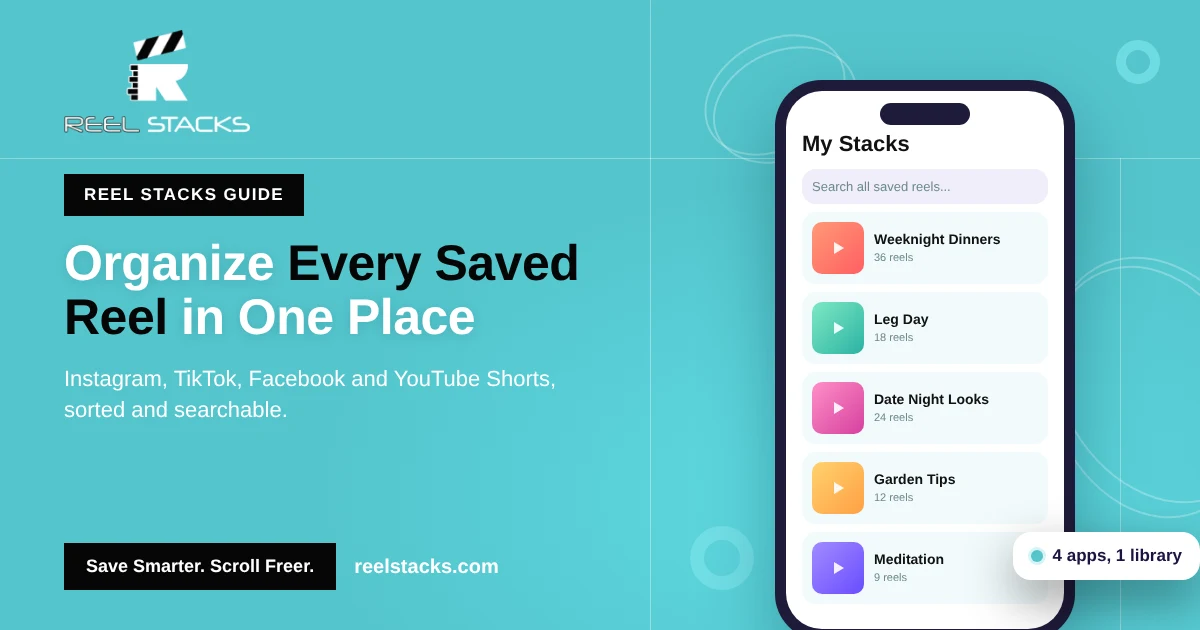
Reel Stacks is an app that saves reels from any platform into categories you create.
- Save a reel. On Instagram, TikTok, Facebook or YouTube Shorts, tap Share, then tap Reel Stacks.
- Pick or create a category. Call it anything: “Recipes to Try,” “Leg Day,” “Date Night Looks.” No limit on categories.
- Find it anytime. Use built-in search or browse your stacks.
- Share a stack. Send a whole category to a friend, your partner or your gym group in one tap.
Category ideas to get started
- Busy parents: Weeknight Dinners, Lunchbox Ideas, Kids’ Crafts
- Fitness: Leg Day, Home Workouts, Stretching
- Home and garden: Garden Tips, DIY Projects, Cleaning Hacks
- Style and beauty: Date Night Looks, Makeup Tutorials
- Mind and spirit: Meditation, Daily Motivation
- Travel: Places to Visit, Packing Tips
Best way to save recipes from Instagram and TikTok
Recipe reels are the most-saved and most-lost content. Create one Reel Stacks category per meal type (Breakfast, 15-Minute Dinners, Desserts). Every recipe you save from Instagram, TikTok or Facebook lands in the same place, and search pulls it up by name.
Save smarter. Scroll freer. Organize reels from every app into one library. Download Reel Stacks on the App Store and Google Play
FAQs
Is there an app to organize Instagram saved posts?
Yes. Reel Stacks lets you save Instagram reels into custom categories and search them, along with reels from TikTok, Facebook and YouTube Shorts.
Can I organize saved TikTok videos into folders?
Yes. Use Collections in TikTok Favorites, or save them to Reel Stacks to keep them with your other reels.
What’s the best app to save recipes from Instagram?
Pick an app that saves from every platform, not just Instagram. Reel Stacks saves recipe reels from Instagram, TikTok, Facebook and YouTube into one searchable library.
Do I need to download reels to save them?
No. Reel Stacks saves the reel so you can find and replay it without filling your camera roll.
Is Reel Stacks free?
[Confirm current pricing before publishing and update this answer.]